
If you’ve spent a lot of time using AI in the browser, then you’ve spent a lot of time being a switchboard operator.
You ask a question. The model answers. You review the response, take the good parts, and paste them back into your code, script, or slides. You get back to work. You hit the next problem. You go back to the model. New question, new error, new prompt. You copy that answer and paste it back into your document.
In the long run, the model is probably making your life easier. No more sifting through forums for code snippets, overthinking emails, or endlessly proofreading manuscripts. But it leaves you feeling like an operator at a switchboard, painstakingly patching every connection between the web browser and your work by hand. It’s, at the very least, annoying.
Wouldn’t it be nice, though, if you could step away from the board? If the model had its own hands and could read and edit your document directly? Or debug, run, and validate your code? All without you ever having to copy or paste?
As it turns out, these “model hands” (called a “harness” in AI speak) do exist.
Tools like Claude Code and Codex take the model out of the browser and put it directly on your computer. Living inside your folders with the power to read and edit the files it finds there. It sounds like a small change. But it isn’t.
It’s the difference between switchboard and direct dial.
Enter the Matrix
There’s just one problem. These harnesses, well, they’re marketed toward high-powered developers (not academics). They have names like Claude Code. They’re called “command line interface” or “CLI tools.” Using them means you have to open your terminal. That little black and green box that makes you feel like you’re hacking into the Matrix.

You might have come across this before and thought, “well, these tools aren’t for me. I’m not a developer. I don’t do that much coding.” And gone back to the browser.
But forget the movies. And actually…forget coding too…1
Claude Code Computer
If you are familiar with browser-based chat (like Claude.ai or ChatGPT.com), then you already know how to use Claude Code.2 It’s just a matter of getting used to where it lives.
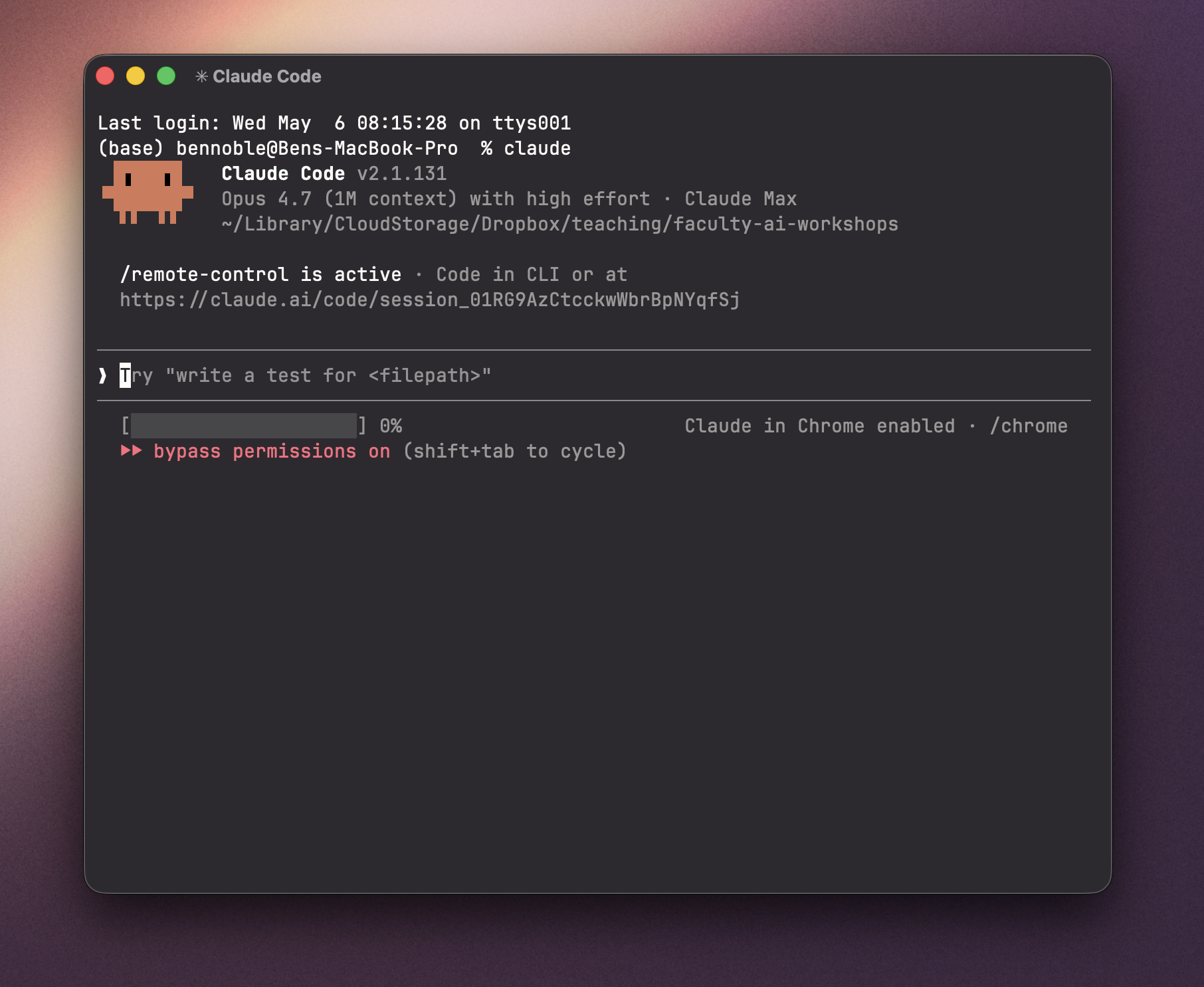
When you open Claude Code in your terminal, you might have a “we’re not in Kansas anymore” feeling. But if you blur your vision and give it the old Magic Eye treatment, it starts to look more familiar. A window. A blinking cursor. A suggested prompt.
You type in plain English. It answers in plain English.
Now, it’s browser chat in a trench coat. You don’t memorize commands. You don’t write code (unless you want to). The terminal is just where the tool lives so that it can run commands on your computer to read and edit files.
| Browser chat | Claude Code | |
|---|---|---|
| You already know | Type in English, get an answer | Type in English, get an answer |
| What’s new | Responses stay in the chat window | Claude also takes actions on your computer |
That new ability changes the workflow entirely. Think about writing a syllabus. With browser chat, you paste a paragraph, get a rewrite, and paste it back into your document. You do that thirty times. Every round, you’re the one moving text from one place to another.
In Claude Code, you ask it to update the dates to match the UCSD spring 26 academic calendar. Or to add an FAQ based on a list of common questions students ask. Or to review the whole thing and correct any typos. It edits the file. You read the change log. You accept (or reject).
You never touched the syllabus, and yet, the document has changed.
This shift comes with two major benefits:
- No more middleman. You don’t have to be the router. You become the manager. Claude can fix the bug, save the file, run the script, see the error, patch again, and keep going until the thing works. You aren’t copying or pasting. You aren’t tabbing back and forth between the browser and RStudio. You direct, the model executes, and the document on your computer gets better. And when you make direct edits to the file, the model can see those in real time and respond too. It’s the difference between collaborating in Google Docs versus emailing a Word doc back and forth.
- Context accumulates. Browser chats are episodic. Each time you open a new tab, you’re starting from scratch, re-uploading the same syllabus or re-pasting the same script. But a folder doesn’t reset. The manuscript is still there. The data is still there. Last week’s draft, the reviewer comments you saved, the sample papers you collected. The context you need is already in place and ready to work with. The folder gets richer over time, and the model gets more useful inside it.
Getting Started
Let me walk you through your first session.
You can find instructions to install Claude Code here and Codex here.
First, I create a folder on my desktop called claude-test. Right now it’s empty.
To launch Claude Code, on my Mac, I right-click that folder and choose “New Terminal at Folder.” This opens a new terminal window “on top of” that specific folder. (On Windows 11, the equivalent is right-clicking the folder and choosing “Open in Terminal”).

I type claude and hit enter. The Claude Code interface appears. There’s a blinking cursor and a suggested prompt, just like the browser. The only other important piece is the line near the top of the screen reading ~/Desktop/claude-test: it shows the folder path where Claude Code is sitting. That folder (and only that folder) is the world Claude can see. Anything inside it (and any subfolder I create inside it) is readable. Nothing outside of it is. Claude goes down, not up.
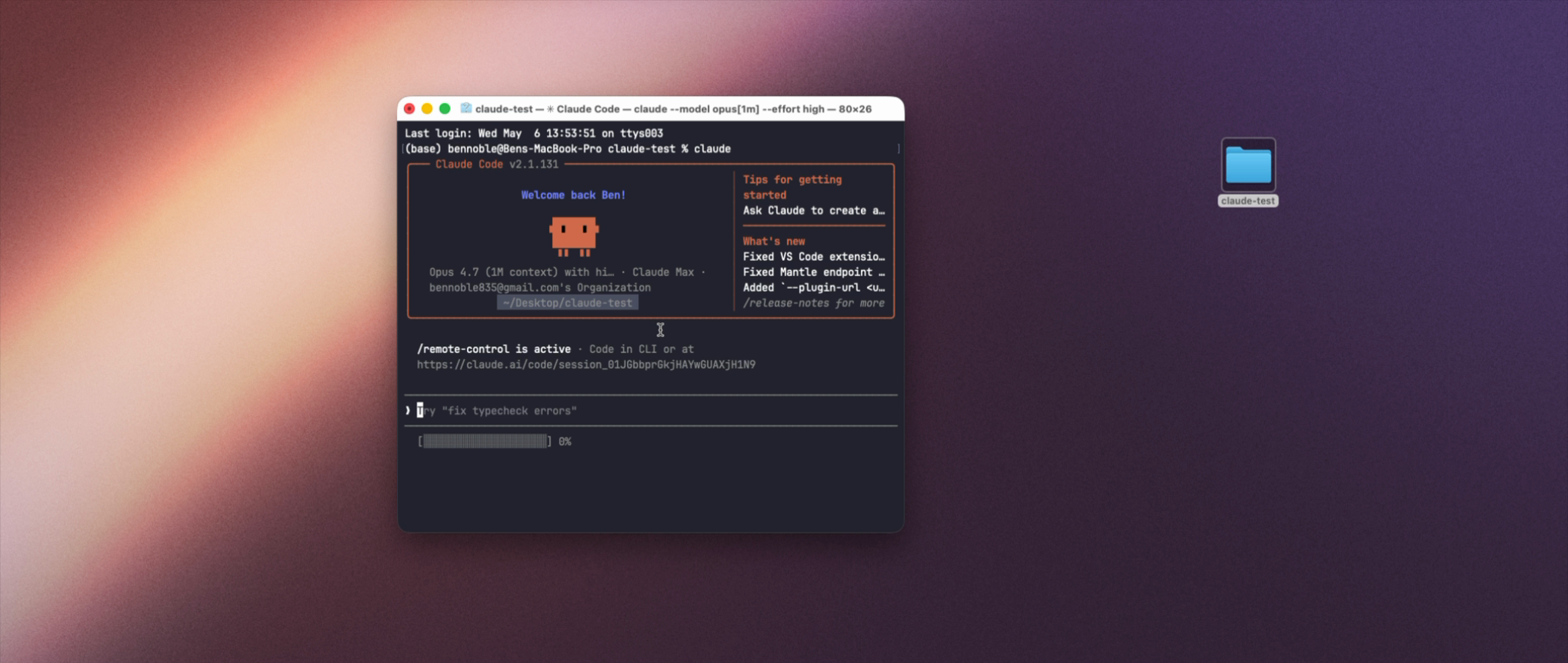
I’ll type something simple to start: “Write me a haiku about graduate school.” Claude produces three lines. So far this is identical to a browser chat.
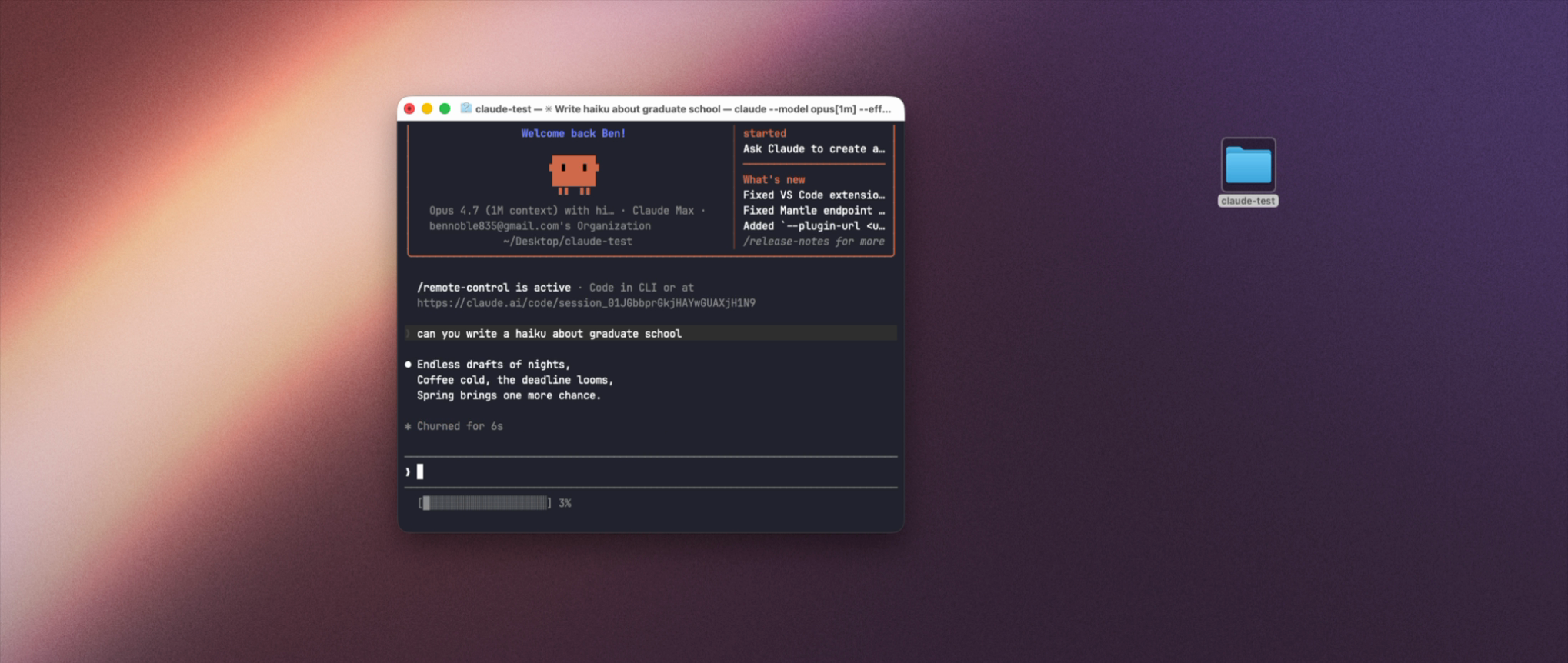
But here’s where things start to feel different. In the browser, if I wanted to keep that haiku, I’d have to copy it from the browser into a text editor and save it somewhere on my computer.
In Claude Code, I just say:
Can you save this as a markdown file?
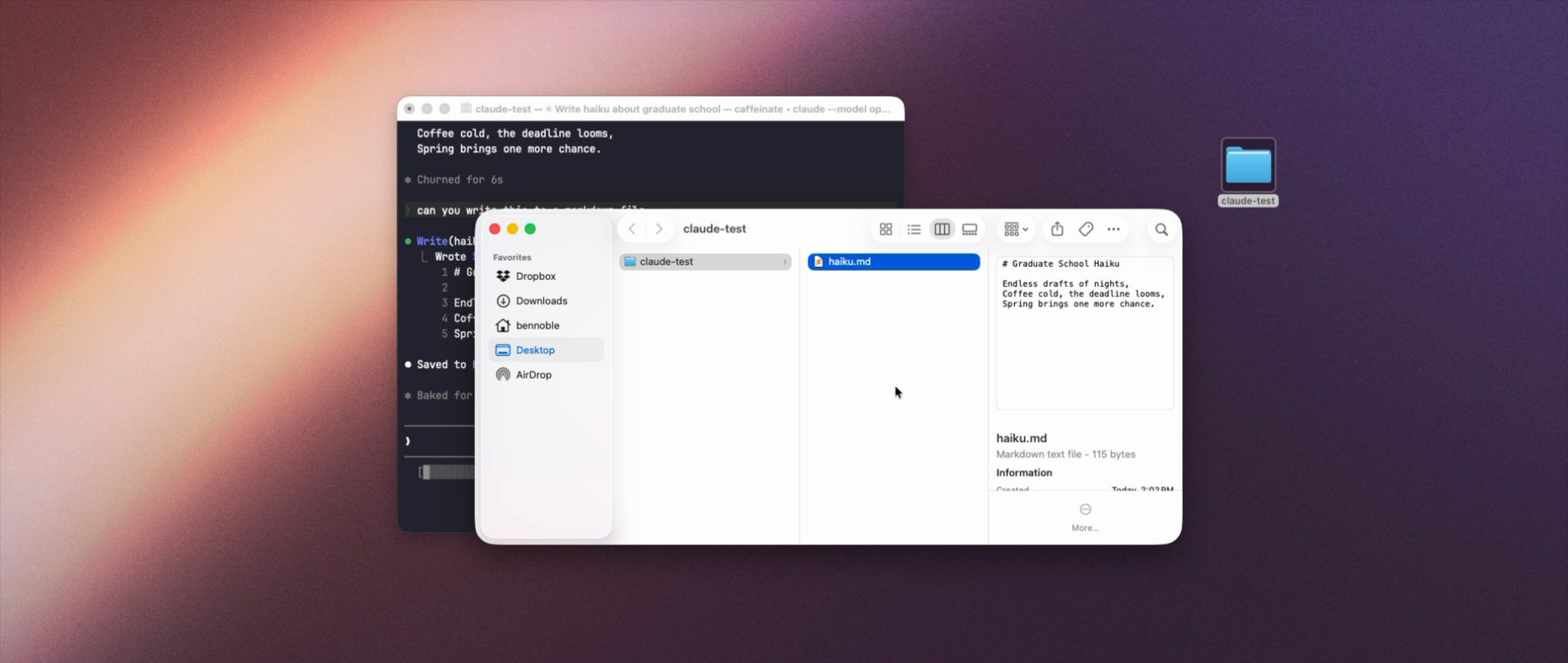
Claude pauses. A permission prompt appears: it’s about to create a new file called haiku.md, and it wants my approval before doing so.
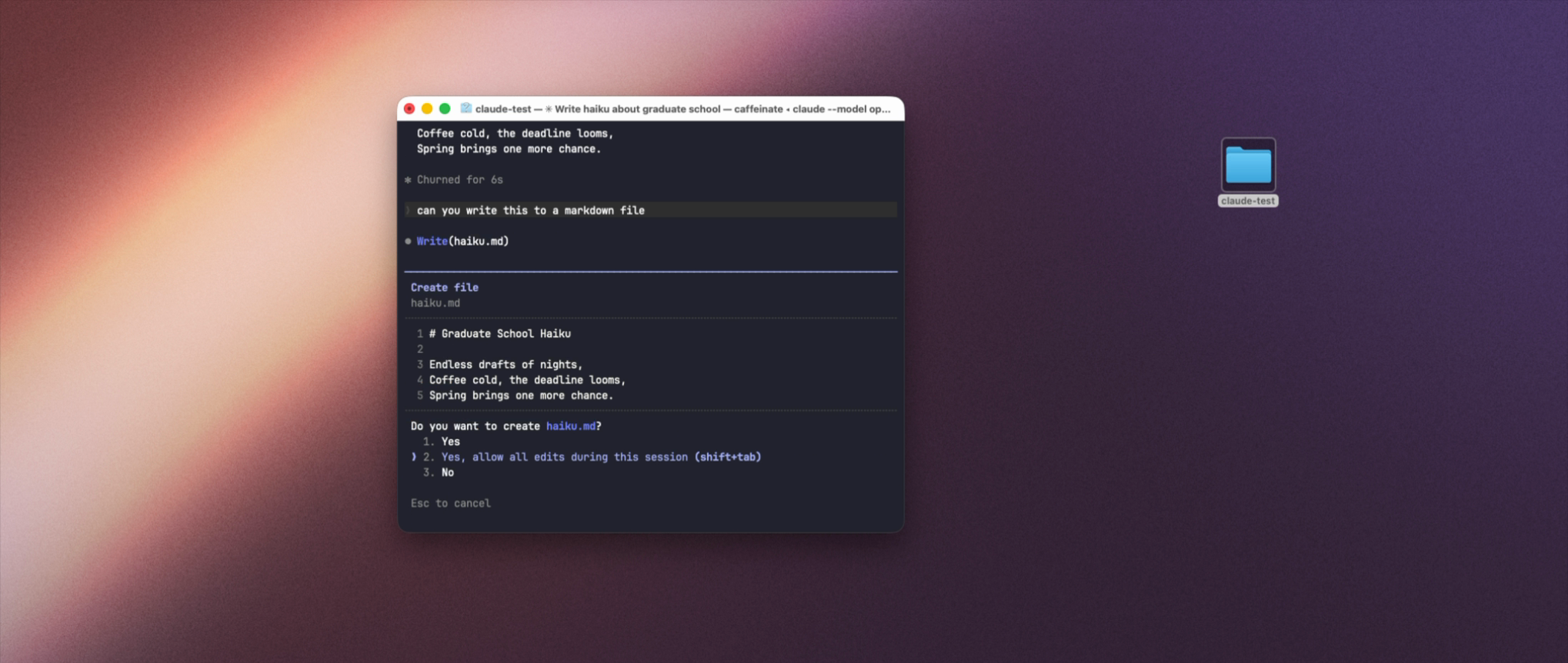
If I approve the prompt, Claude creates haiku.md and drops it in claude-test. I can switch to Finder and open the file. The haiku is sitting there. It’s a real file on my computer. I could email it to someone. I could put it in Dropbox. I could open it in any text editor and make changes. It is not stuck in a chat history.
Claude will ask before doing anything destructive: writing a new file, editing an existing one, deleting one, or running code. But it will *not* ask before reading. Anything in the folder you launched it in (and any subfolder) is silently readable. The folder choice is extremely consequential. Don't launch Claude in your home directory. Don't launch it in a folder that mixes IRB-protected data with your grocery list. Pick a specific project folder and know that, in launching, you're giving Claude consent to read.
Back in the terminal, I can ask: “Add a second haiku about political science underneath the first one.” Claude, again, asks for permission. I approve. Claude edits the file in place. Now, both haikus are there.
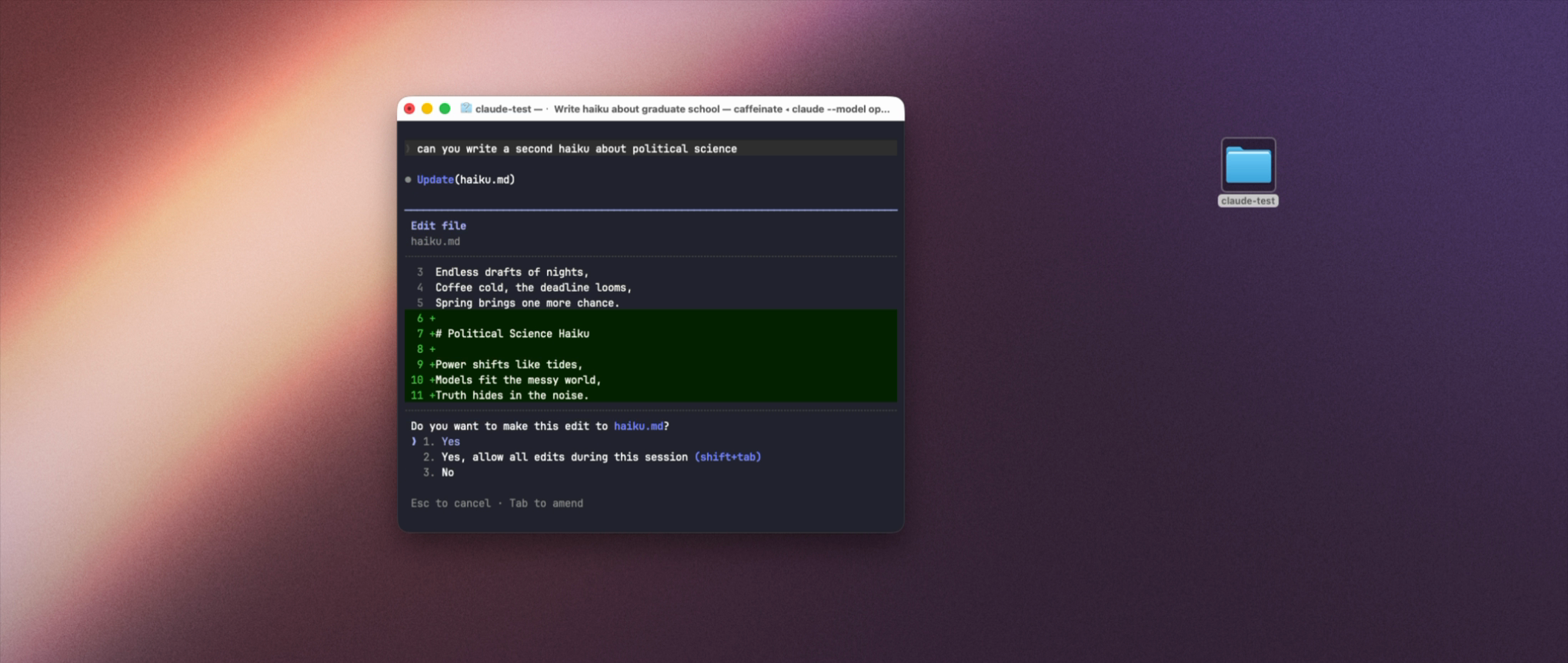
I quit Claude. I close the terminal. The conversation is gone. But the file is not.
Run My Code
Let’s turn to a coding application.
In this folder, I have two files. The first is survey.csv, a small fake survey dataset. It has columns for respondent ID, party, approval of the president, age, and state. The second is an R script that loads tidyverse, reads the data, and computes the mean of presidential approval by party.
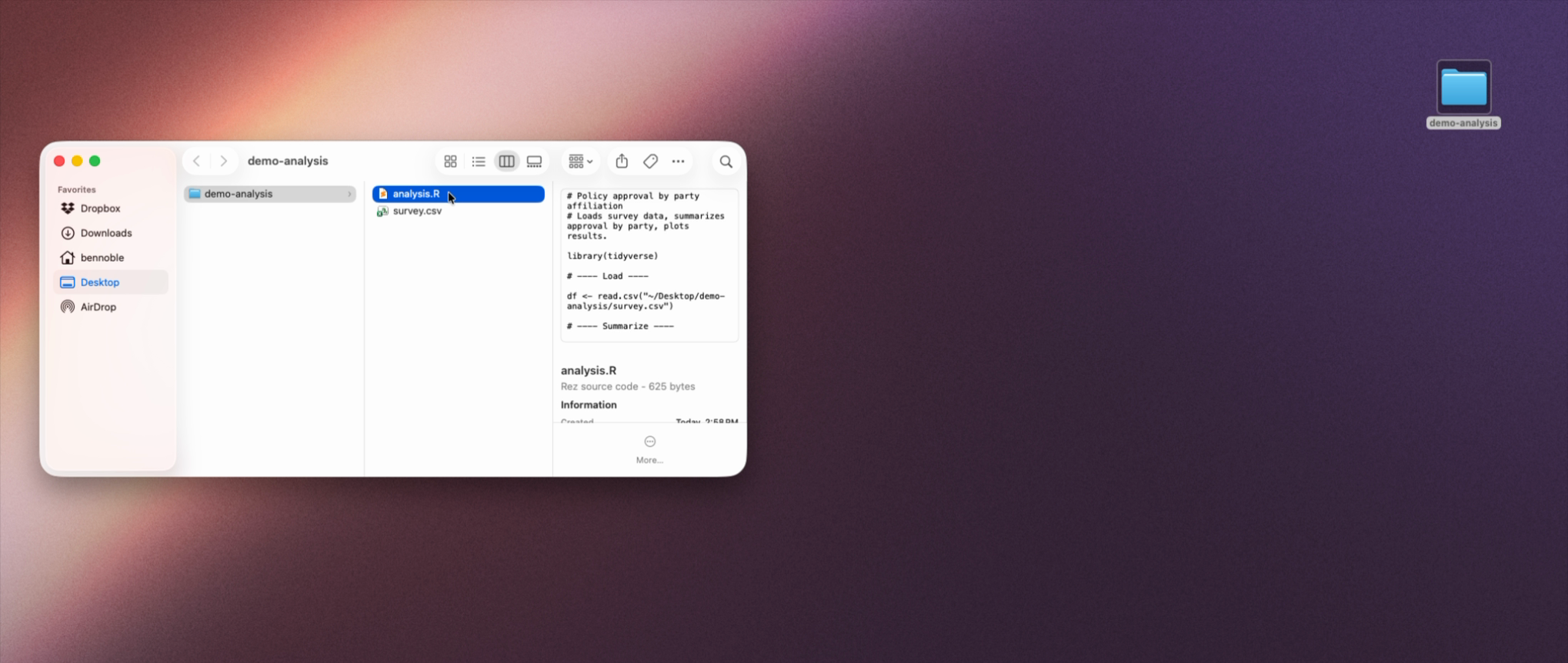
Now, this script has a problem: I capitalized Approval in my code, but the column in the CSV is lowercase approval. If I run this script, it will throw an error.
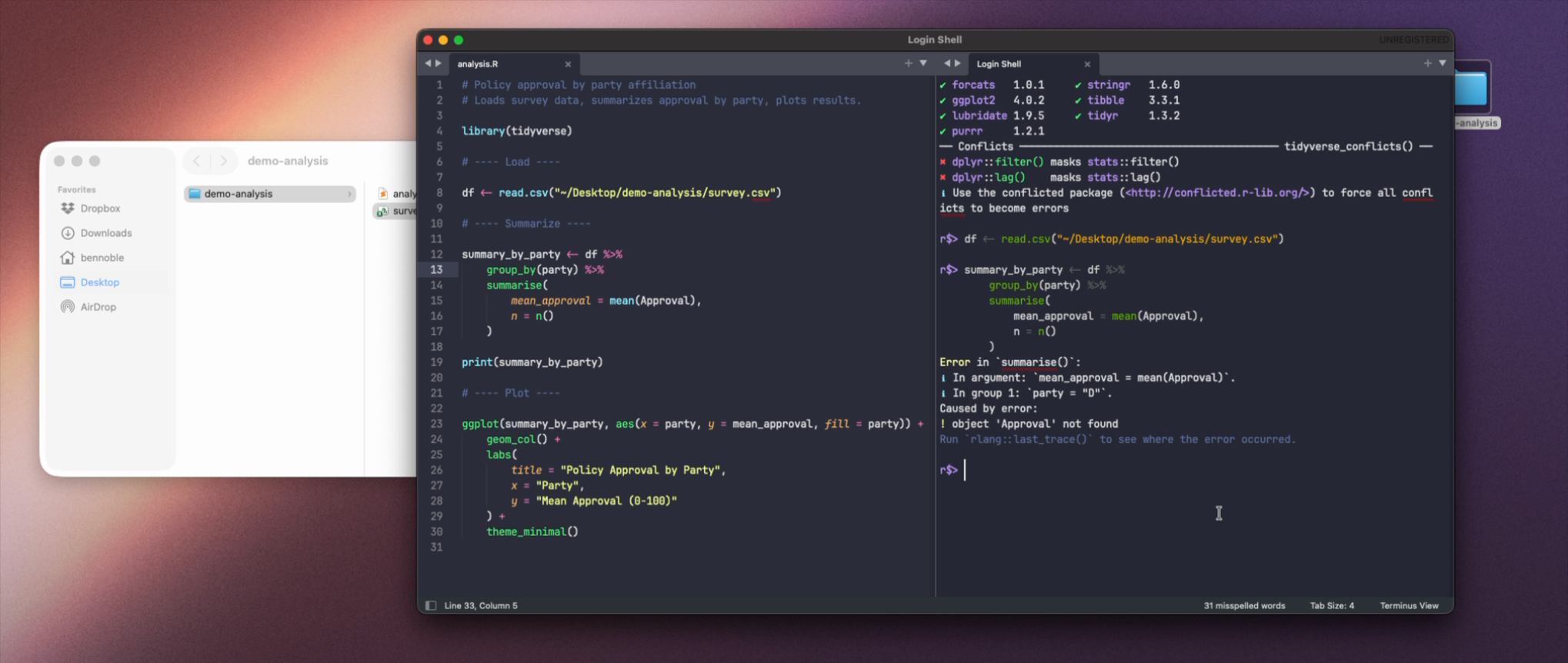
If I were debugging this with Claude in the browser, I’d have a few options, none of them quick. I could paste the error message into Claude and hope it can guess what’s going on, but Claude in the browser has no idea what my script looks like, what my data looks like, or how the two relate. I could upload the CSV and the script as attachments. Claude would probably find the bug. Then it would tell me what to change. Then I’d tab back to my editor, find the right line, fix the typo, save the file, and rerun the script. Five minutes of clerical work for a one-character change.
In Claude Code, I just type:
I'm running my analysis but hitting an error. Can you run the code, identify the error, determine why we're hitting this error, correct it in the script, rerun the code to ensure it works, and keep going until the script runs end-to-end?
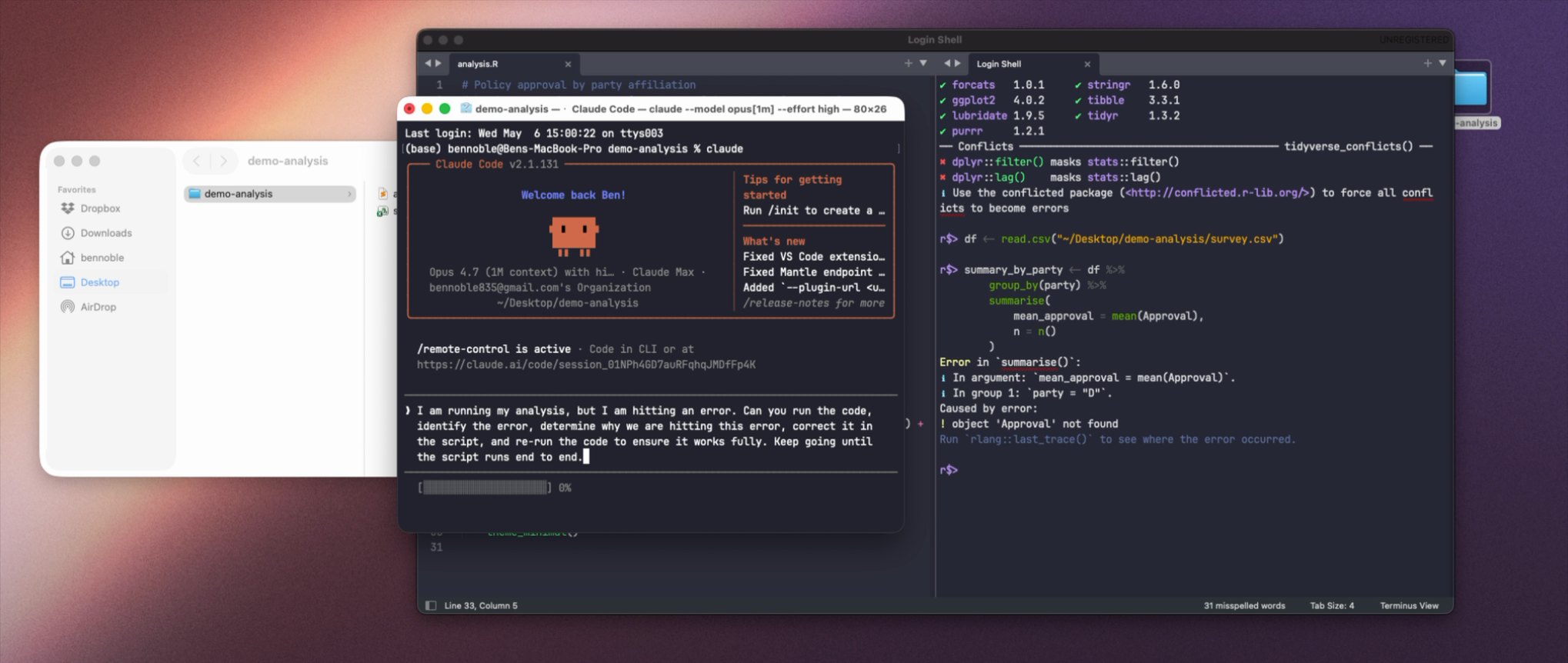
Claude lists the directory. It reads the files. It looks at the first few rows of the CSV. It asks if it’s okay to run my script. I say yes. The script errors, the same error I got. Claude reads the error, looks at the script, looks at the CSV, and tells me: mean(Approval) references a capitalized column, but the data has a lowercase approval. It shows me the diff: what it’s going to change. I approve. Claude edits the file. It runs the script again. It works. Claude summarizes what it did.
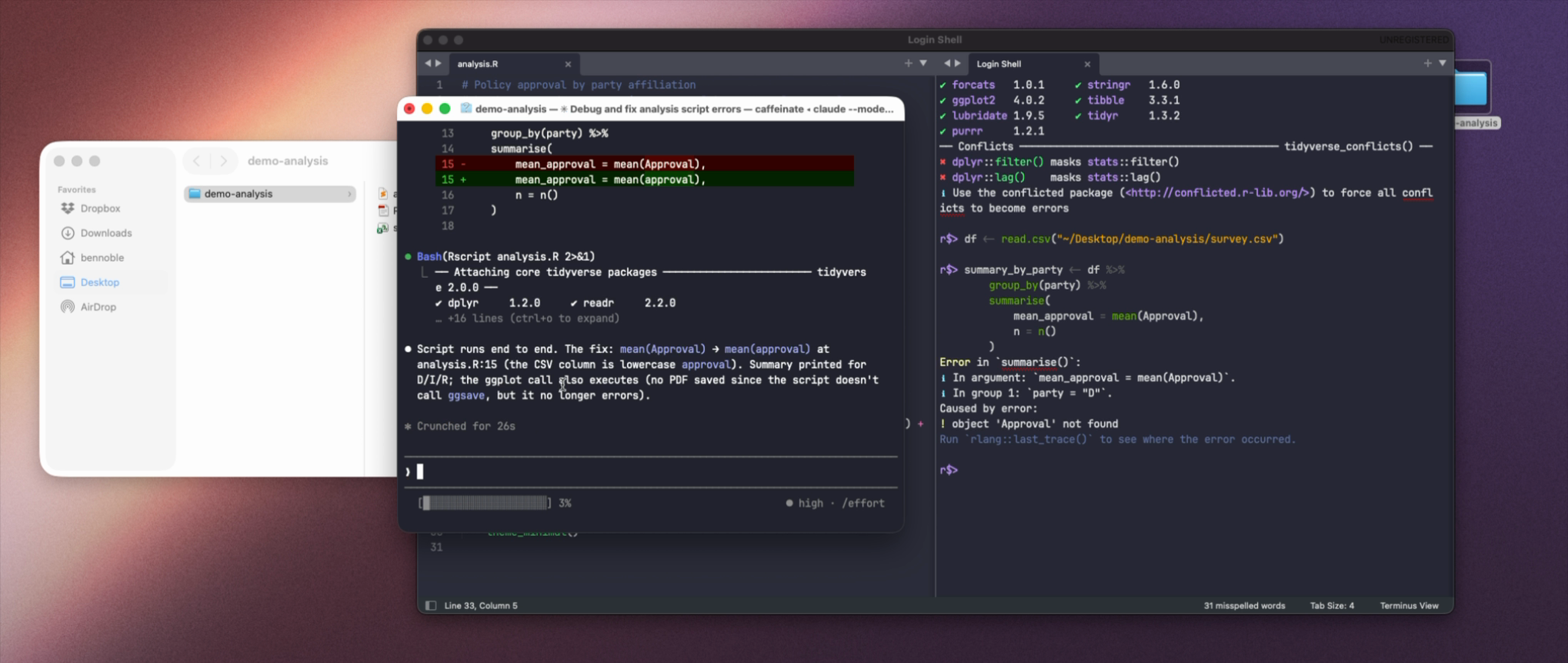
Back in my editor, the script is already updated and ready to go.
This is a toy example, and any R user could spot and correct that issue instantly. But the bug isn’t the point. The point is that Claude ran the code, saw the output, inspected the actual data, made the fix, and confirmed it worked. I never touched the file.
You can monitor every change. The permission prompts mean nothing destructive happens without your sign-off. But the actual labor of running, reading, comparing, and re-running is off your plate.
Be My Reviewer
Code is the obvious use case for a tool with “code” in its name. But Claude Code can do so much more.
Let’s look at a completely different application: getting a journal-quality review of your paper. To do so, I can create a folder on my computer and add a few files: a draft of my paper and three similar papers from the journals I am targeting.
Then I open Claude in that folder and use this prompt:
You are a tough but fair peer reviewer for APSR. I am the author of the draft paper. I want a serious critical review, the kind that would make me wince if I saw it on a referee report, but that I would later admit was right.
Read my paper carefully. Then read the exemplar papers in this folder. Treat the exemplars as the standard this paper needs to clear in framing, methodological rigor, and contribution.
Produce 6–10 specific critiques. For each one:
1. Name the section, page, or claim it concerns ("the introduction's framing of X," "the identification strategy on page 12").
2. State the problem in one or two sentences.
3. Explain why it matters for the paper's contribution or credibility.
4. Compare to how the exemplars handle the same issue, when relevant.Cover the full range: framing in the literature, theoretical contribution, methodological choices, identification or measurement, evidence interpretation, robustness, scope of claims, writing clarity. Do not avoid critiques because they are out of your specialty.
Rules:
Be blunt. Do not hedge. Do not call this a good paper. Do not lead with positives.
Do not suggest solutions or revisions. Your job is to surface problems, not strategy.
Skip "minor comments." Lead with the most damaging critiques.
If a critique is potentially unfair but the kind of thing a hostile R2 might raise, include it and flag it as such.Save the review as review.md in this folder.
After Claude reviews the documents, it comes back four minutes later with a pretty devastating review. I did wince! The validation section is too thin. The methodological defense is underdeveloped. One result needs stronger support.
Do I agree with every single critique? Not necessarily. But that’s true of any review. The point isn’t that Claude is always right. It’s that you have some concrete feedback before you submit.
Now, to be fair, you could also do this in the browser with enough copying and pasting. But here’s where things get more interesting. Months later, I can return to this folder and add the revised paper. I start a fresh chat:
Compare the revised manuscript in this folder against the original review.md. Create a new file that tracks which critiques we addressed and which ones we missed. Flag the highest-priority gaps before resubmission.
What comes back is a revision audit. A file in the folder tracking what made it into the new draft, what didn’t, and what I should focus on before submitting.
The folder is now doing work that’s harder to replicate in the browser. The original paper is there. The original review is there. The revised paper is there. The audit comparing the two is there. Each time I open Claude in this folder (next week, next month, next round of reviews), all of that is still there. Each session starts richer than the last. The folder is becoming a project repository, storing all of the files and context that Claude can take advantage of, improving over time.
What’s Next?
Claude Code is not just a tool for programmers. It is a tool for anyone whose work consists of files: drafts, data, notes, comments, exemplars. Which is to say, it is a tool for academics.
Once you get the basics, you begin to see new use cases. Synthesize a stack of reviewer comments into a revision memo. Stress-test a grant section against a folder of funded grants in your area. Translate an analysis from R to Python. Build a README and codebook from a folder of raw data files. Reformat tables and citations across a manuscript.
There’s really no limit to what AI can do once you let it write files and run code on your computer.
Takeaways
Browser chat is powerful, but you are always the middleman between the model and your file. The back-and-forth introduces friction that, at best, wastes time, and at worst, discourages you from using the model when it would otherwise be helpful.
Claude Code (and Codex, and whatever comes next) gets rid of that work by giving it to the model. Claude reads your files, edits them, runs them, and confirms the results.
But you stay in control. You give direction, you read the diffs, you approve the actions you want and reject the ones you don’t. What’s left is your judgment. Which is, after all, the part you couldn’t outsource anyway.
If the terminal really isn’t for you, Claude Code and Codex also have desktop apps. They have more features than the terminal and are, somewhat ironically, more complicated to use. I prefer the terminal because it is the simplest interface with the fewest bells and whistles, but the desktop apps are there if you’d prefer those. ↩
I am going to refer to Claude Code throughout this article, but OpenAI’s Codex CLI tool is nearly identical and works just as well. ↩